

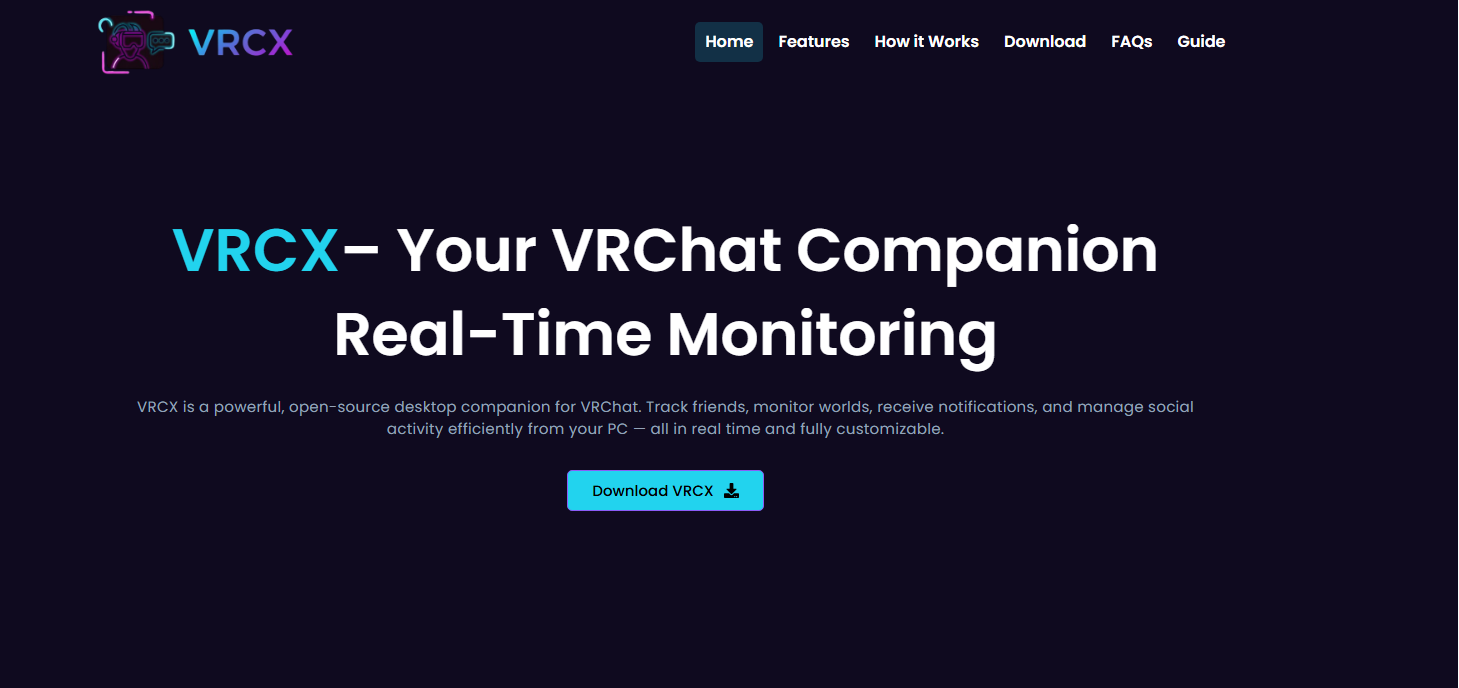
VRCX is a popular companion application used by many VRChat players to enhance their social experience, manage friends, and access useful features outside the main game. While the software is highly useful, users often run into frustrating problems such as crashes, login failures, update issues, or connection errors. These problems can interrupt gameplay and make the application difficult to use. Fortunately, most VRCX errors can be fixed quickly with the right troubleshooting methods.
Understanding the common causes behind VRCX problems is the first step toward solving them. In many cases, errors happen because of outdated files, corrupted settings, firewall restrictions, or conflicts with VRChat itself. By applying a few practical fixes, users can restore the application and continue using it without major interruptions.
Understanding Why VRCX Errors Happen
Before jumping into solutions, it helps to understand why these errors appear. VRCX relies on several components working together correctly. The app needs a stable internet connection, updated system files, access permissions, and compatibility with VRChat updates. If any part of this chain breaks, errors may occur.
One of the most common reasons for VRCX issues is outdated software. VRChat updates frequently, and sometimes VRCX needs updates to remain compatible. Running an older version can lead to login problems, broken features, or application crashes. Corrupted cache files can also create conflicts that prevent the app from functioning properly.
Another common cause is antivirus or firewall software blocking VRCX connections. Since the application communicates with VRChat servers, security programs may mistakenly identify it as suspicious activity. This can stop certain features from loading or prevent the app from launching entirely.
Restart the Application and Your Computer
The simplest fix is often the most effective. Restarting VRCX can clear temporary glitches that occur during operation. Close the application completely from the system tray or Task Manager before reopening it. If the error continues, restart your computer as well.
A system restart refreshes background services, clears temporary memory issues, and stops conflicting processes. Many users find that minor login and loading errors disappear after a fresh reboot. While this solution may seem basic, it is surprisingly effective for temporary software problems.
Update VRCX to the Latest Version
Running the latest version of VRCX is essential for stability and compatibility. Developers frequently release updates to fix bugs and improve performance. If your version is outdated, you may experience crashes or broken features.
Visit the official VRCX website or GitHub page and download the newest release. Before installing, close any running version of the app to avoid installation conflicts. Once updated, launch the software again and check whether the issue has been resolved.
Keeping both VRChat and VRCX updated together is important because mismatched versions can create communication errors between the applications.
Clear Cache and Configuration Files
Corrupted cache files are one of the leading causes of persistent VRCX problems. Over time, temporary files can become damaged and interfere with the application’s operation. Clearing these files often restores normal performance.
Locate the VRCX configuration folder on your computer and remove cached data. After deleting the cache, restart the application. VRCX will automatically generate fresh files during startup.
This process is especially useful for users experiencing freezing, loading loops, or interface glitches. Removing corrupted settings can eliminate hidden conflicts that normal restarting cannot fix.
Check Internet Connection Stability
VRCX depends heavily on a stable internet connection. If your network is slow or unstable, the application may fail to connect to servers correctly. This can result in login errors, missing friend lists, or delayed updates.
Test your internet connection by opening websites or running a speed test. If the connection appears unstable, restart your router or switch to a wired connection for better reliability. VPN services can also interfere with VRCX communication, so disabling them temporarily may help solve connection problems.
Network interruptions are often overlooked, but they are a major source of VRCX errors for many users.
Disable Antivirus or Firewall Restrictions
Security software can sometimes block VRCX without warning. Antivirus programs and Windows Firewall may prevent the application from accessing the internet or modifying necessary files.
Open your firewall settings and add VRCX as an allowed application. If you use third-party antivirus software, create an exception for the program there as well. After making these changes, restart VRCX and test it again.
If the problem disappears after disabling security software temporarily, you have confirmed the cause. Instead of leaving protection disabled, it is safer to whitelist the application properly.
Run VRCX as Administrator
Permission issues can prevent VRCX from functioning correctly. Running the software as an administrator gives it the access needed to manage files and network functions properly.
Right-click the VRCX shortcut and select “Run as Administrator.” If this fixes the issue, you can permanently enable administrator mode through the application properties menu.
This method is especially useful for installation errors, update failures, and settings that refuse to save correctly.
Reinstall the Application Completely
If none of the previous fixes work, reinstalling VRCX may be necessary. A fresh installation removes corrupted files and replaces missing components that may be causing errors.
First, uninstall the current version from your system. After uninstalling, manually delete leftover configuration folders to ensure no damaged files remain. Then download the latest version from the official source and install it again.
A clean reinstall often fixes stubborn issues that survive normal troubleshooting. Although it takes more time, it can restore full functionality quickly when other methods fail.
Verify VRChat Compatibility
Sometimes the issue is not directly caused by VRCX itself but by changes in VRChat. Major VRChat updates occasionally break compatibility with third-party tools until developers release patches.
Check community forums, Discord servers, or the official VRCX update page to see whether other users are experiencing the same issue. If a compatibility problem exists, waiting for an official fix may be the only solution.
Staying informed through community discussions can save time and prevent unnecessary troubleshooting attempts.
Preventing Future VRCX Errors
Preventing problems is easier than constantly fixing them. Regularly updating your software, clearing temporary files, and maintaining a stable internet connection can greatly reduce the chances of future errors.
Avoid downloading unofficial modifications or plugins that may conflict with VRCX. Keep your operating system updated and ensure your drivers are functioning correctly. Creating backups of important settings can also help you recover quickly if problems return.
Good maintenance habits improve software stability and reduce the risk of repeated crashes or connection failures.
Final Thoughts
VRCX errors can be frustrating, especially when they interrupt your VRChat experience. However, most problems can be fixed quickly with a few practical troubleshooting steps. Restarting the application, updating software, clearing cache files, checking internet connections, and adjusting security settings are among the most effective solutions.
In more serious cases, reinstalling the application or waiting for compatibility updates may be necessary. By understanding the common causes of VRCX issues and applying the right fixes, users can restore functionality and enjoy a smoother VRChat experience without long periods of downtime.
